
Pay with Card
How to pay for an Oceans Technology course with a debit or credit card, access your lessons, and download your course book.
How to Pay with a Debit or Credit Card (No PayPal Account Needed)
Price: £199 per course
You can pay by debit or credit card. A PayPal account is not required. Follow the three steps below.
-
Click Buy
Open your course overview page and click the green Buy button on the price card.
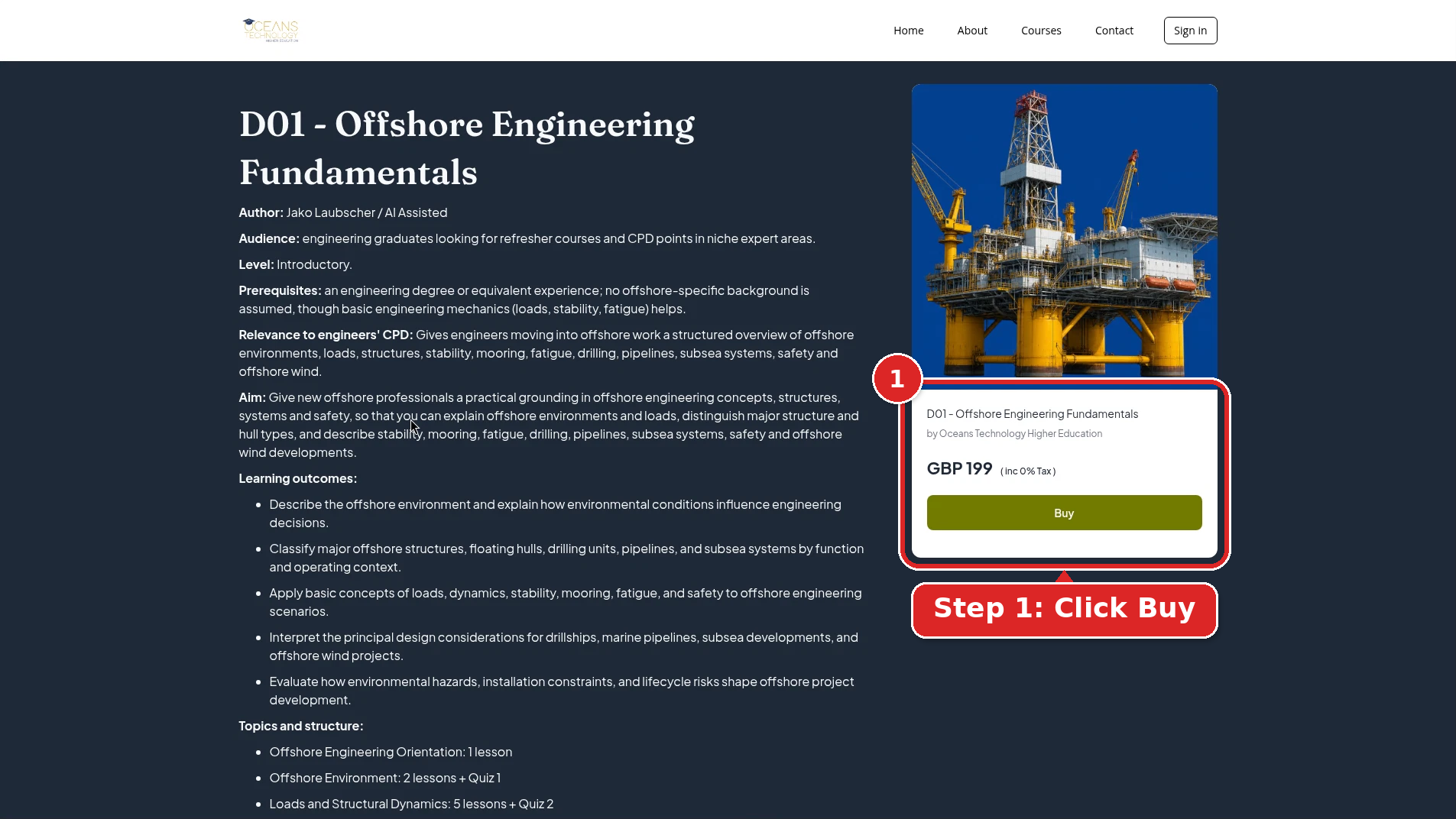
Step 1: Click Buy on the course page. -
Create your course login and click Pay with PayPal
In the Buy Now window, enter your first name, last name, email and a password, and accept the terms. Then click the yellow Pay with PayPal button. This is the way to reach the card payment screen — you do not need a PayPal account.
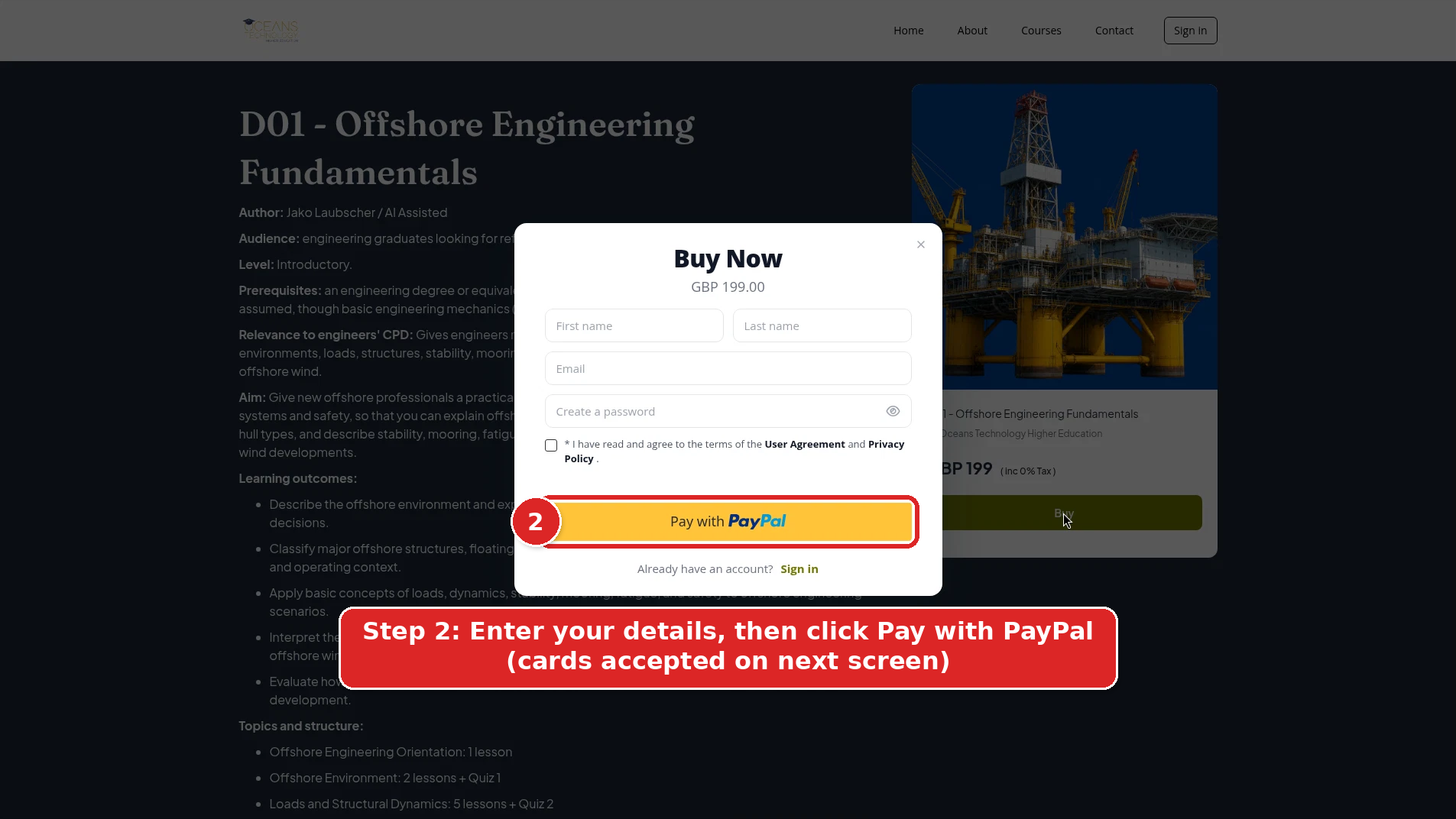
Step 2: Create your login, then click Pay with PayPal. -
Pay with your debit or credit card on the PayPal screen
On the PayPal screen, select Pay with Debit or Credit Card (or Check out as a Guest) and enter your card details to complete the payment.


How to Access Your Course
After payment, you get instant access to your course. Click Start to begin, or Resume if you are returning to a course you have already started.
To come back later, go to My Learning in the top menu, or visit https://oceanstechnology.coursebox.ai/, and sign in with the email and password you created at checkout.
How the Course Runs
Each course is an engineering graduate or postgraduate level, AI-assisted online course, marked as 20 hours minimum, but it could well take up to 80 hours to complete. Here is how the learning environment works:
- Course outline. Lessons are organised in the left-hand sidebar. Open a section to move through the lessons in order.
- Audio read-out. Use the speaker icon at the top right of a lesson to listen along as you read.
- AI tutor. The tutor widget sits at the bottom right of the lesson. It guides you through the material rather than giving away answers.
- Quizzes. Each quiz is graded, with a pass mark of 80%. You can reattempt a quiz as many times as you need.
- Practical case studies and scenarios are built into the lessons so you can apply what you have learned.
- Certificate of completion. When you finish the course, you will receive a certificate of completion. Formal CPD recognition is in progress. You may log your study hours as self-directed CPD where your professional body allows it.

How to Download Your Course Book (Student Notebook)
Each course includes a student notebook (PDF) that you can download, print or use for notes and exercises alongside the lessons.
-
Open lesson 1.1 Welcome
In the course outline sidebar, open the first section and click 1.1 Welcome.
-
Scroll to the bottom and download the PDF
Scroll to the bottom of the lesson, under the heading Click to download the task documents. Click the PDF file row (for example D01-student-notebook-v3.pdf) or the download icon on the right.
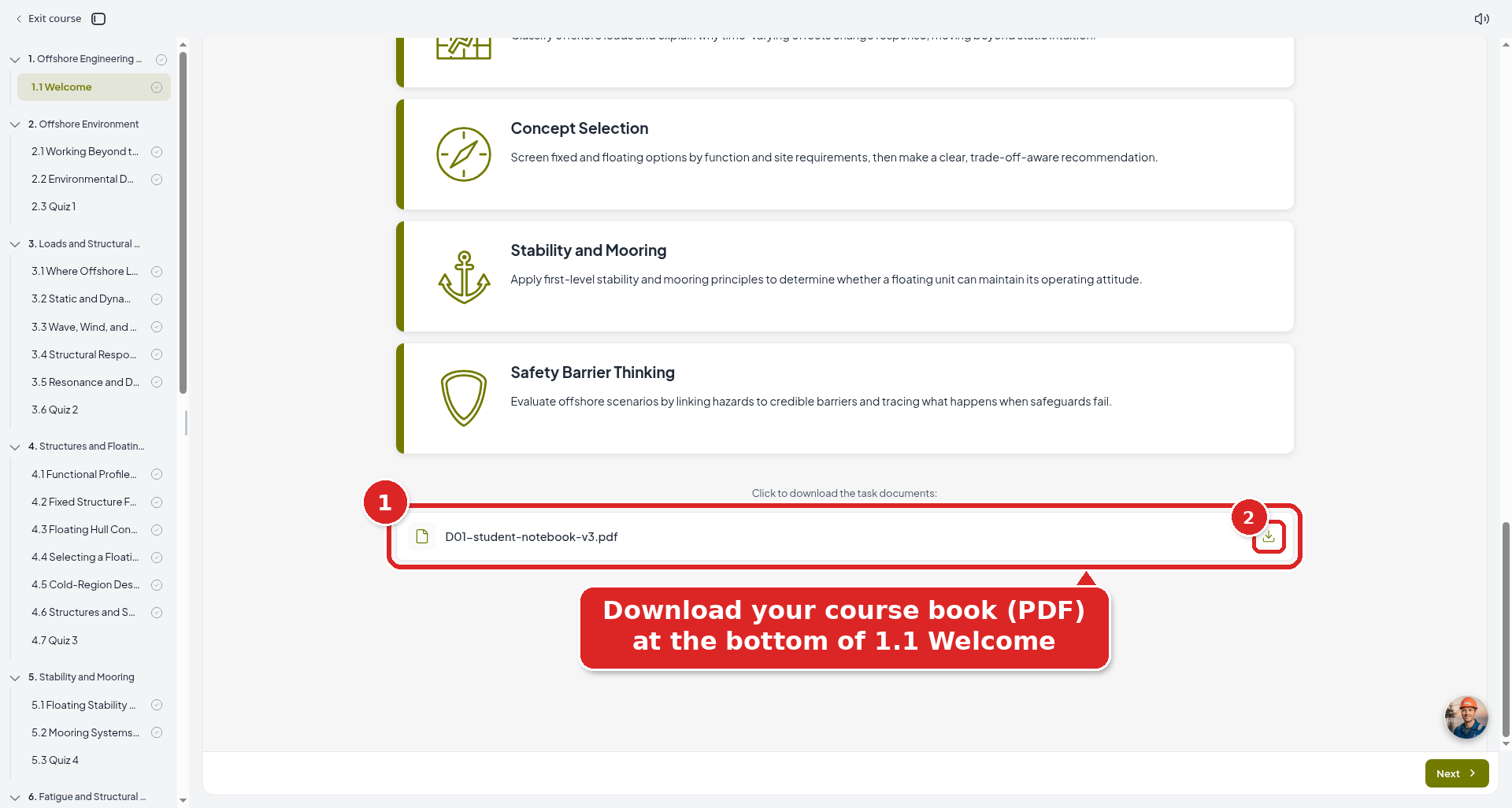
Download your course book (PDF) at the bottom of 1.1 Welcome.

Need help with payment or access? Email us at management@oceanstechnology.co.uk.
Recent Comments